
Installing an SSL certificate on Rucenter hosting
If you received an SSL certificate through our "Get a Free SSL Certificate" promotion or purchased one directly from Rucenter, it will be installed on your hosting automatically. No additional actions are required to install the certificate; you can start setting up your website right away.
If you do not have an SSL certificate yet, you can order one from Rucenter.
Rucenter specialists can perform all the necessary steps to correctly install an SSL certificate on your website: submit a request for the "SSL Certificate Setup" service.
If you are installing an SSL certificate that is issued not by Rucenter, proceed to item 2.1 of these instructions.
You can find instructions on working with installed SSL certificates in this article.
Download the issued certificate to your computer
1.1. Go to https://www.nic.ru/en/ and log in to your Personal Account by entering your contract number and password.

1.2. In the Active Services section, select SSL сertificates.

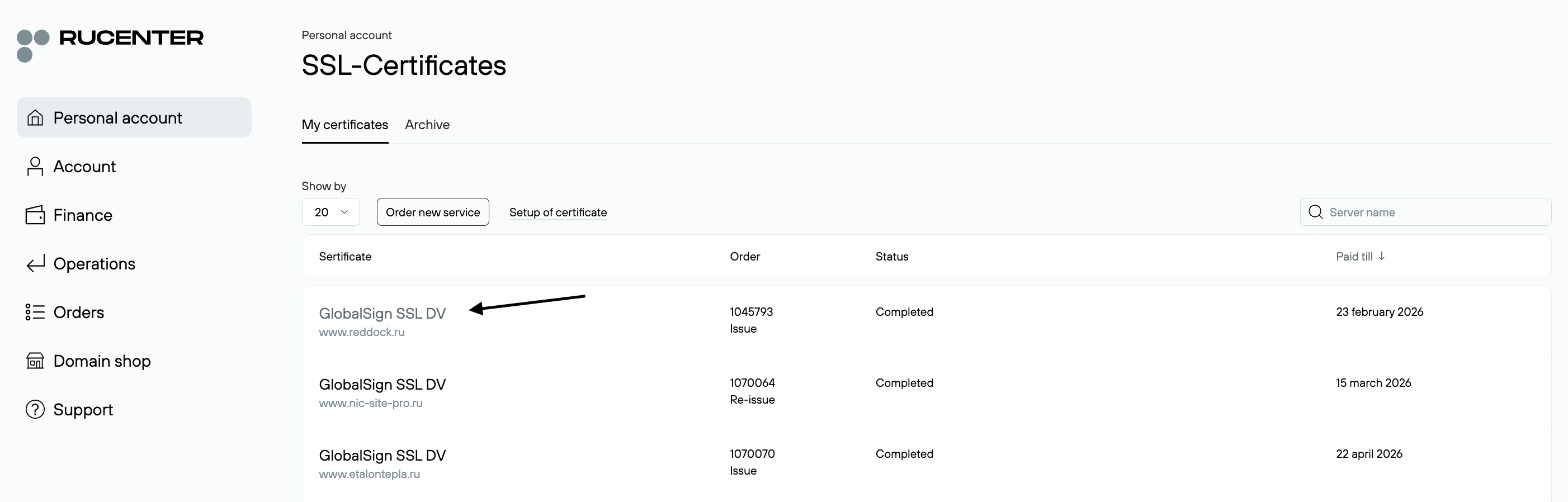
1.3. Follow the link with the certificate name.
1.4. On the page that opens, download the certificate for your domain; the intermediate and root certificates are not required.
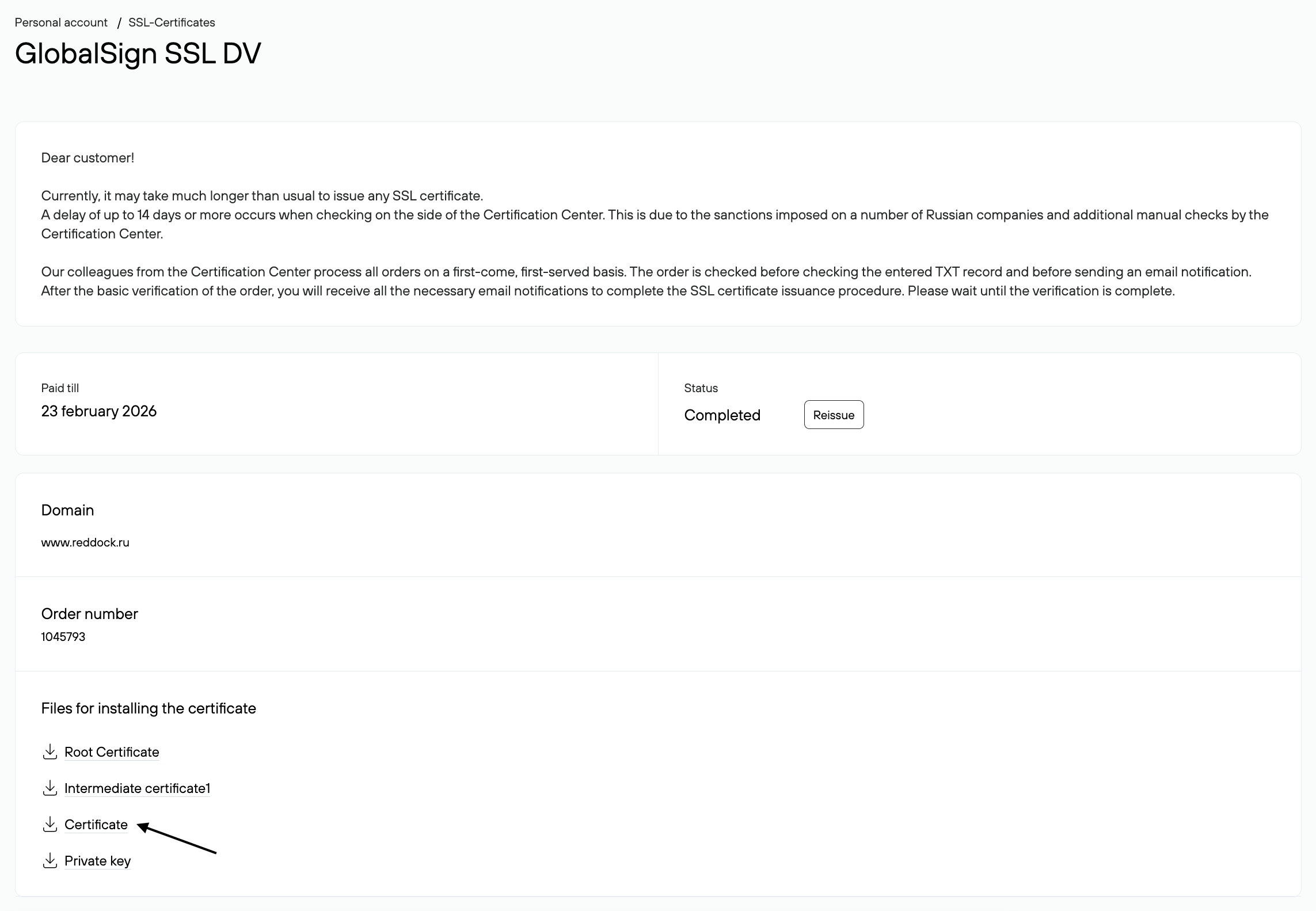
1.5 When you click on the Private Key item, a link is sent to the contact email address, which you must follow to receive the key.
Install the certificate in your hosting control panel
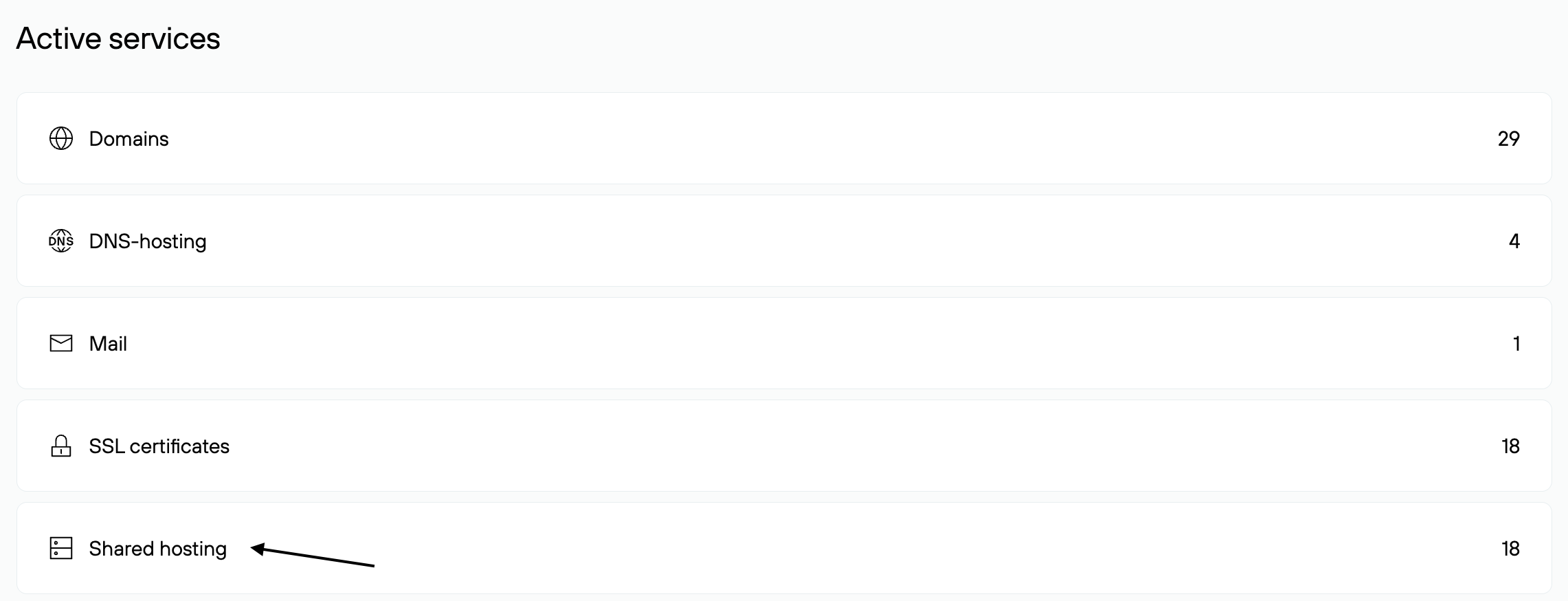
2.1. Select Virtual Hosting in the Active Services section of your Personal Account.
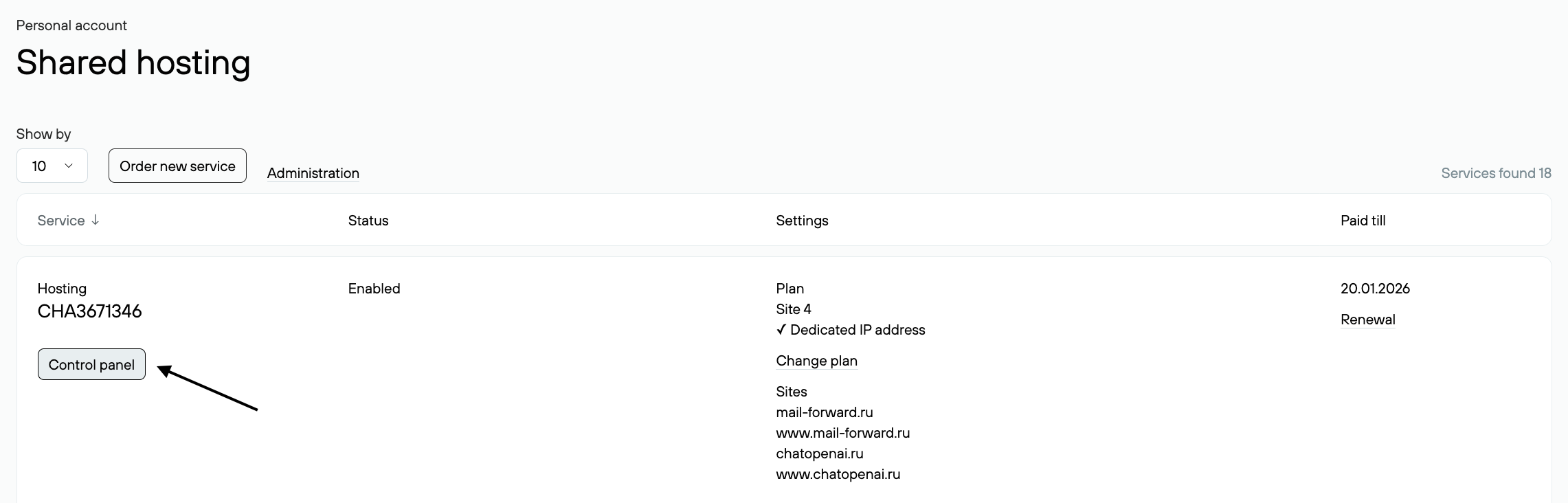
2.2. Go to hosting management.
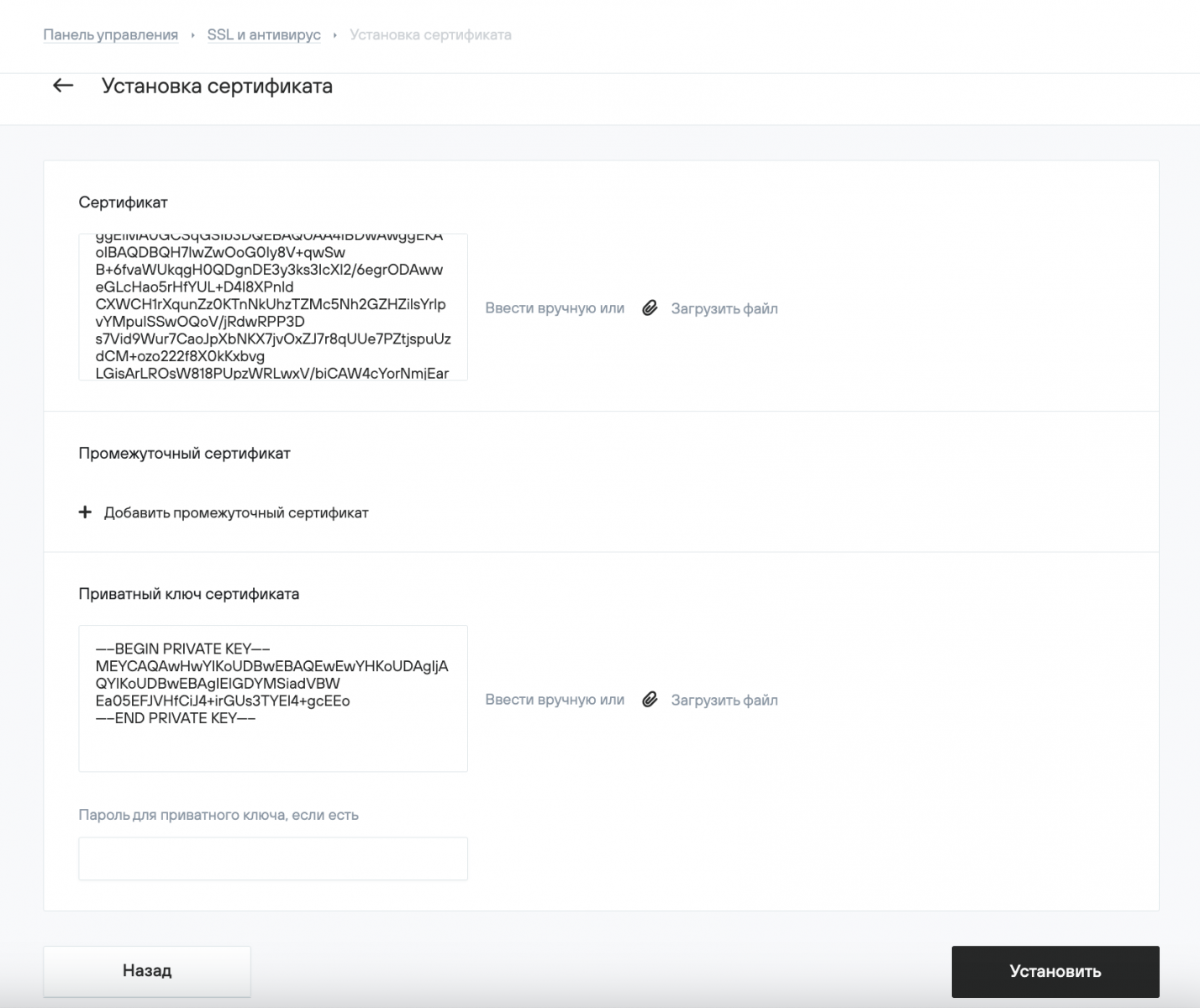
2.3. In your hosting control panel, go to Websites → SSL and Antivirus. Then click the Install button.

2.4. Copy the contents of the previously saved SSL certificate files and your domain’s private key into the appropriate fields:
— An SSL certificate for a domain has the domain name for which the certificate was issued in its name; it is loaded first.
— When installing certificates issued at Rucenter, the system automatically installs intermediate certificates; there is no need to upload them manually.
— If your certificate has several intermediate certificates (they have the word "intermediate" in their names), you need to upload them one by one by clicking the Add Intermediate Certificate button. The root certificate must be loaded last, as an intermediate certificate.
— When copying, make sure there are five dashes on either side of BEGIN and END. The secret key must not contain any extra spaces, line breaks, or additional characters that were unintentionally added.
— If the private key is password protected, enter the password in the appropriate field and click the Install button.
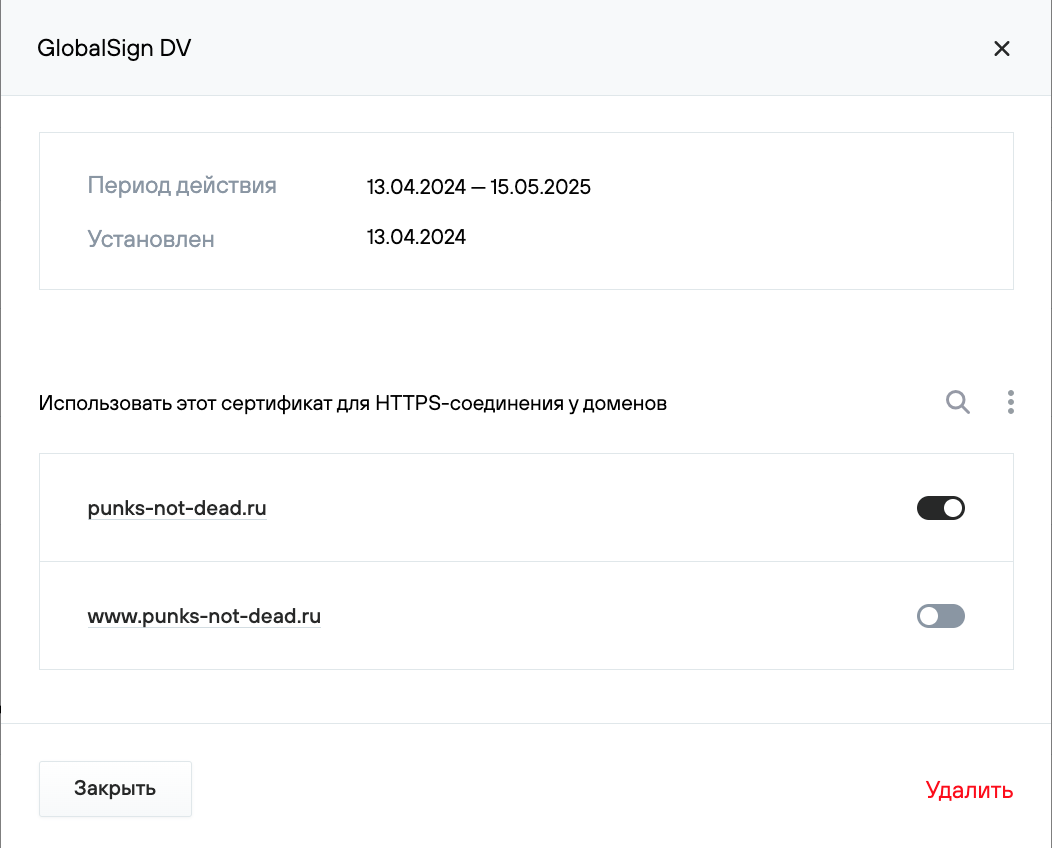
2.5 Once the SSL certificate installation is complete, a pop-up will open with certificate parameters and domain names for which the SSL certificate can be enabled.
If a different SSL certificate is enabled for a domain, a lock icon will be displayed to the right of the domain name, which you can hover over to get more information.
2.6. Installation is complete. Check the website’s availability via HTTPS in a few minutes by accessing it at https://your_domain.
Configure your website to work with SSL
3.1. If your website has a CMS installed, you will need to perform additional actions to configure the HTTPS connection in the website’s administrative panel in accordance with the documentation, and possibly correct links containing http:// in the texts on the website.
Learn more about setting up your website to run via HTTPS.
3.2. As a universal way to redirect requests from HTTP to HTTPS, you can add the following directives to your .htaccess file:
RewriteEngine On

RewriteCond %{ENV:HTTPS} !on

RewriteRule ^.*$ https://%{HTTP_HOST}%{REQUEST_URI} [L,R=301]
For correct operation, the headers_module must be enabled in the Web Server Management section of the hosting control panel.
Learn more about configuring the .htaccess file.
3.3. If after setting up a redirect the website is not displayed correctly, this may be due to mixed content.
In this case, some of the content is loaded onto the website page using the insecure HTTP protocol instead of HTTPS, which prevents the website page from being considered completely secure. As a rule, this can be corrected by replacing absolute links with relative ones, i.e., in each project file, replace links of the form — https://site.ru/content/ на относительные— /content/, and for external links, specify the https:// protocol in the address.