Website and email restoration from a backup copy
- Restoration of a website backup copy
- Restoration of a database backup copy
- Restoration of emails from a backup copy
1. Restoration of a website backup copy
Restoration of a website backup copy (files and databases) is made in the Backup (Резервные копии) section of the hosting control panel.
Restoration of a website from a backup is performed in two stages:
- Restoration of website files;
- Restoration of a database (if any).
If you need to obtain a backup of your website files, click on its name and select the restoration date.
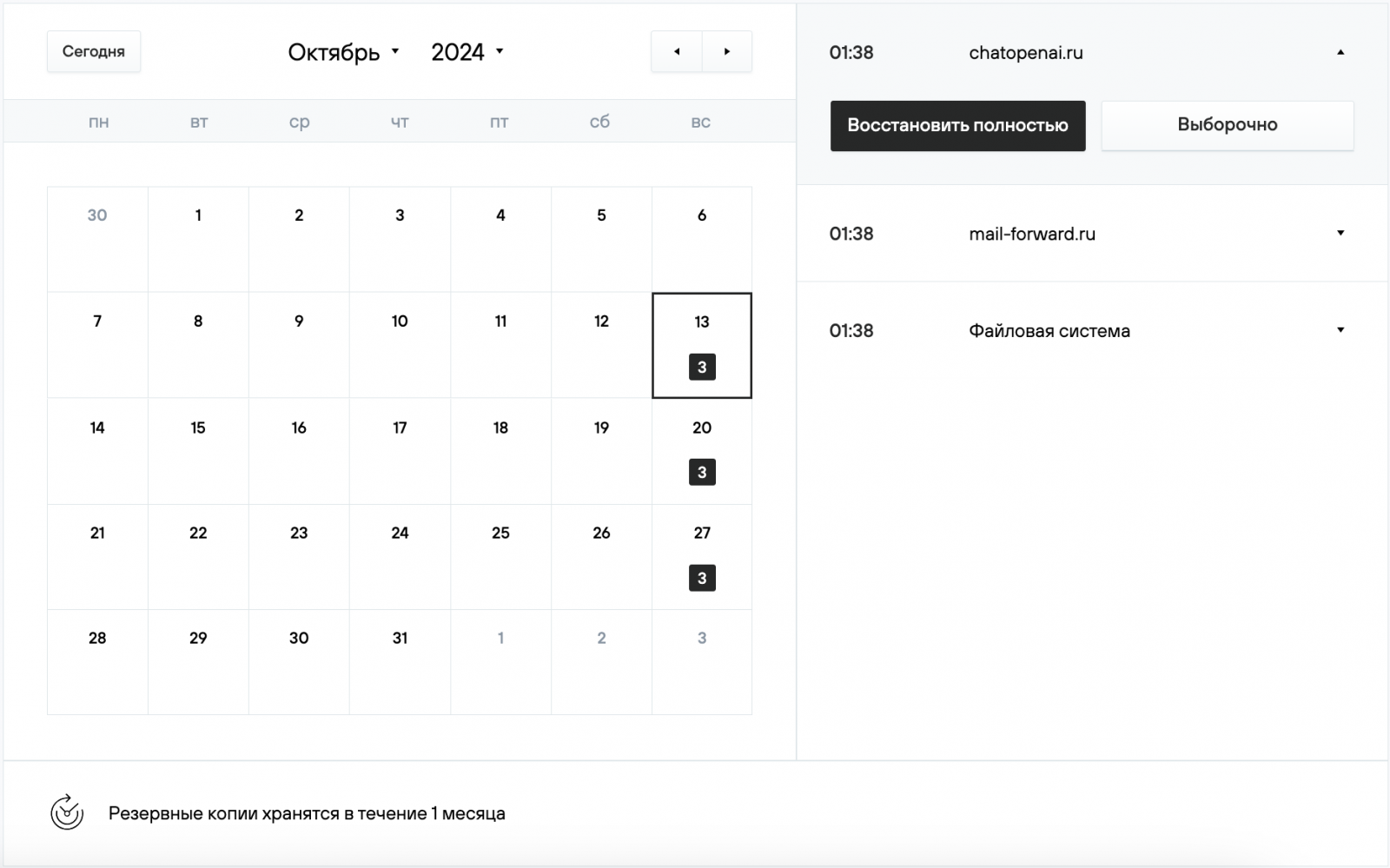
The Restore function completely (Восстановить полностью) restores the contents of the selected website's catalog. When you click the button, an additional window will appear.
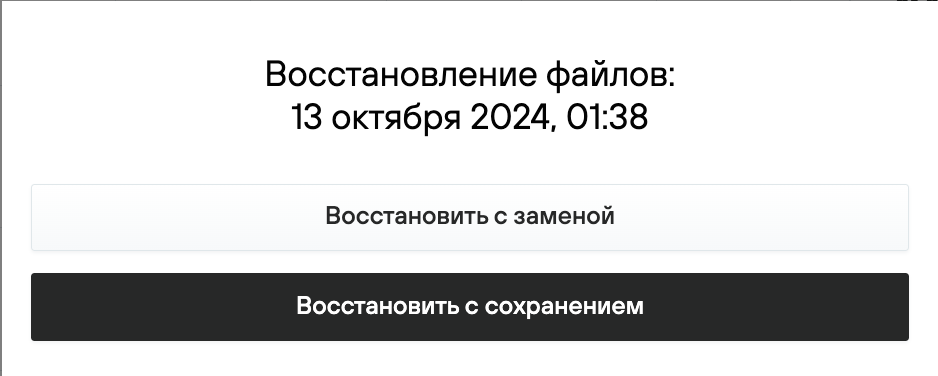
When you click the Restore with replace (Восстановить с заменой) button, the current files will be automatically replaced. We recommend renaming the root directory with the current content of the website beforehand to preserve it. In File Manager (Файловый менеджер) go to the folder with your website name, select the docs folder, click on the Rename (Переименовать) icon, then enter a new name of the folder (for example, docs_old) and apply the changes. After restoring the website and checking it, the contents of docs_old can be deleted.
When you click the Restore with save (Восстановить с сохранением) button, a copy of the files will be downloaded to the /home/login/tmp/DATE directory, where DATE is the date when the backup was created.
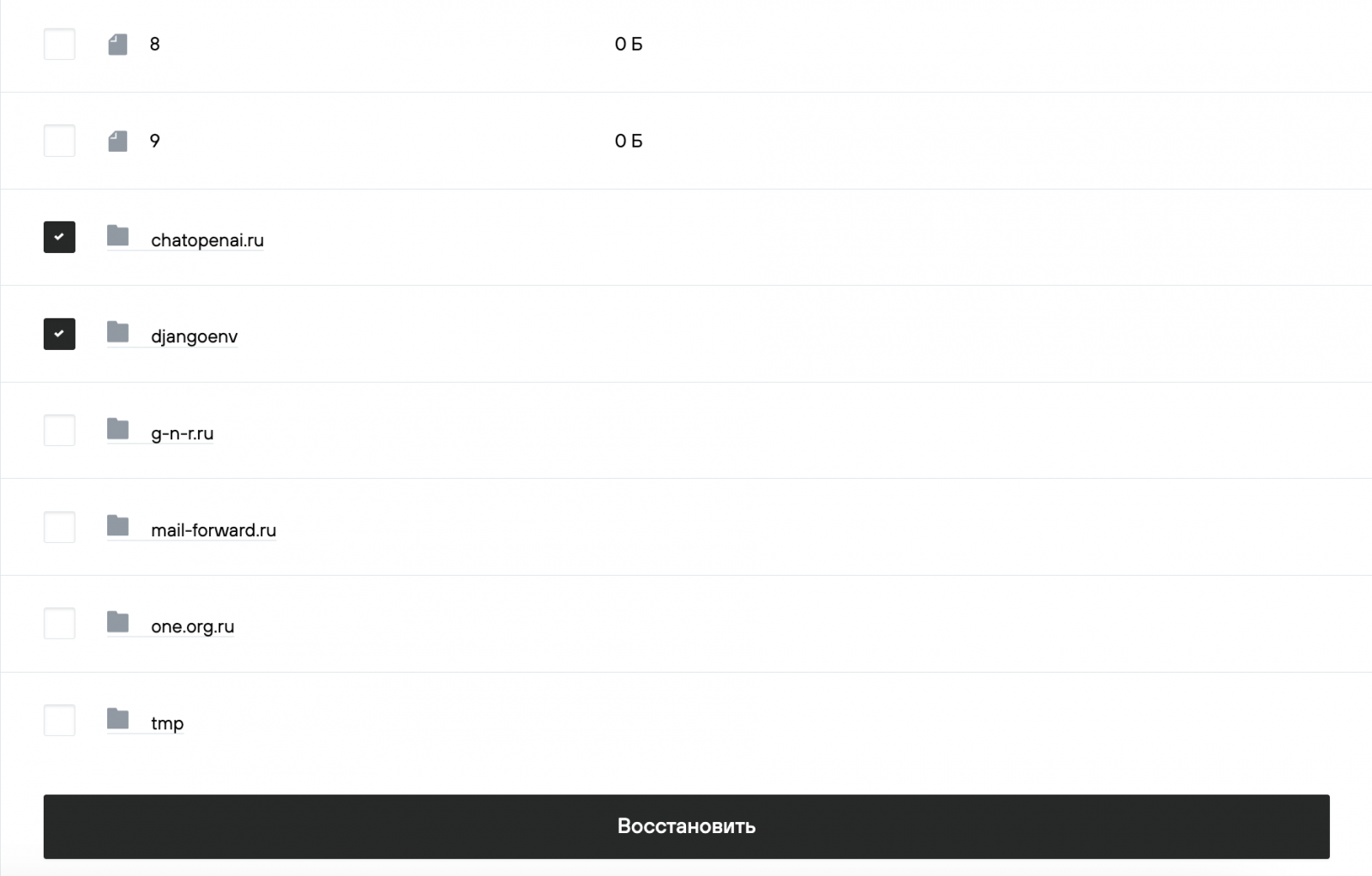
The Selective (Выборочно) function allows you to specify individual files and directories of the website for restoration.
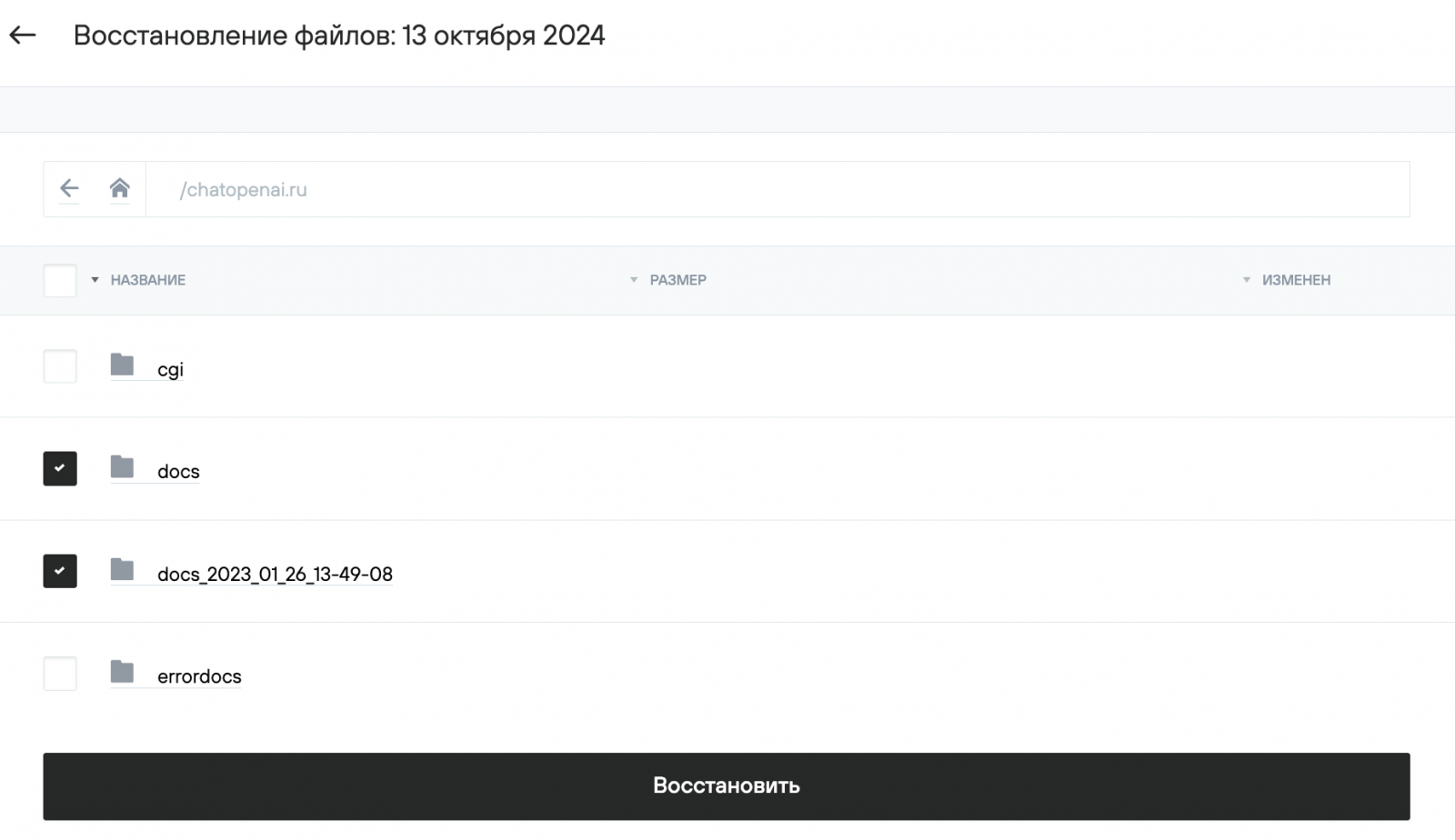
After clicking the Restore (Восстановить) button, the backup content will be saved in the /home/login/tmp/DATE directory, where DATE is the date when the backup was created.
If you need to restore other files, select File System (Файловая система) — Restore Selectively (Восстановить выборочно).

Then select the desired files or directories and click the Restore button. The contents of the backup will be stored in the /home/login/tmp/ directory.
2. Restoring a database backup
To obtain a backup copy of the database, go to Backups (Резервные копии) and select Databases (Базы данных) in the top menu. The databases available for restoration will be displayed after a date selected.
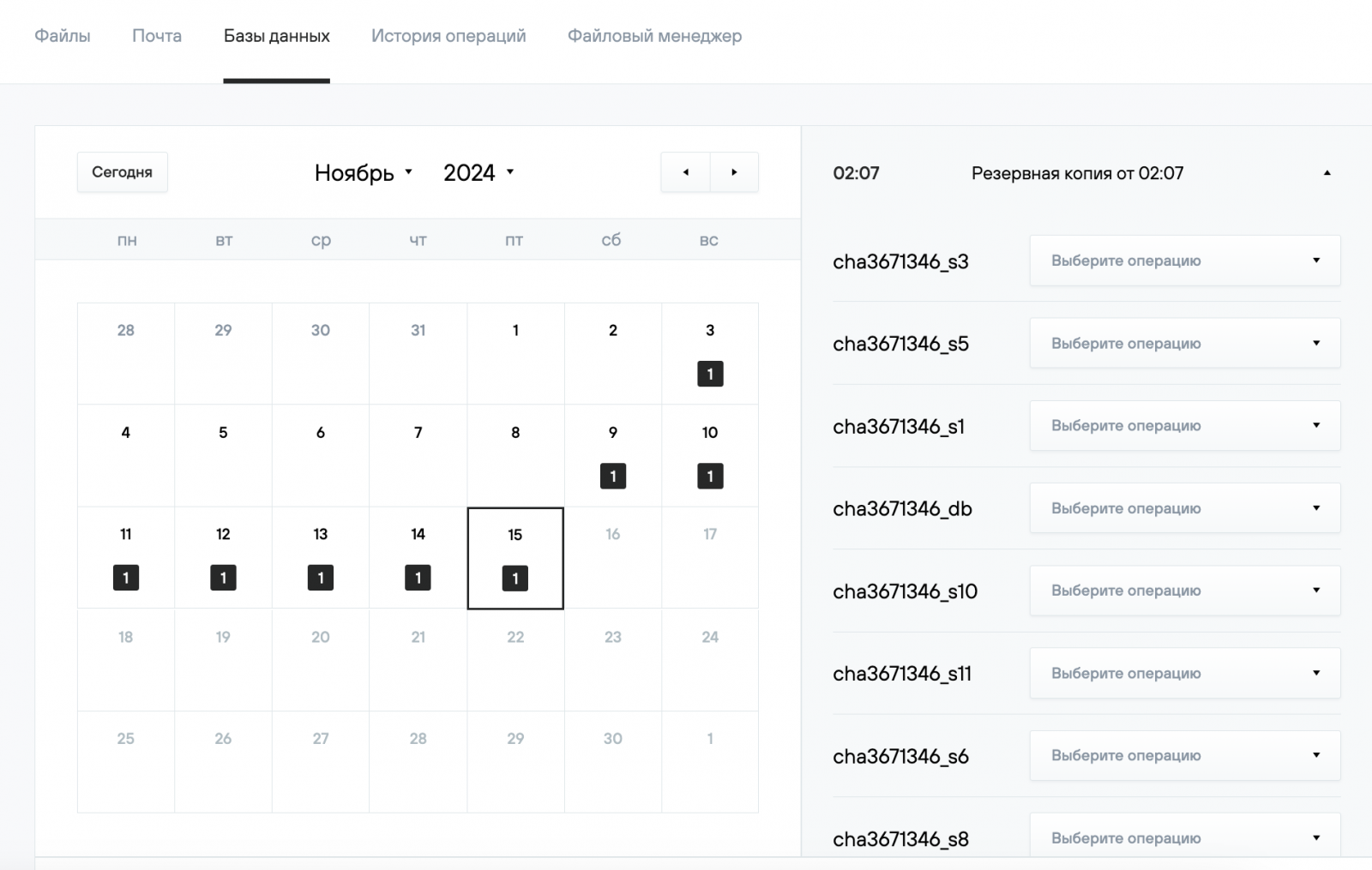
Opposite each database, you can choose a restoration method. After selecting the operation, the backup will be restored after a period of time, which depends on its size. The task status is displayed in Operation History.
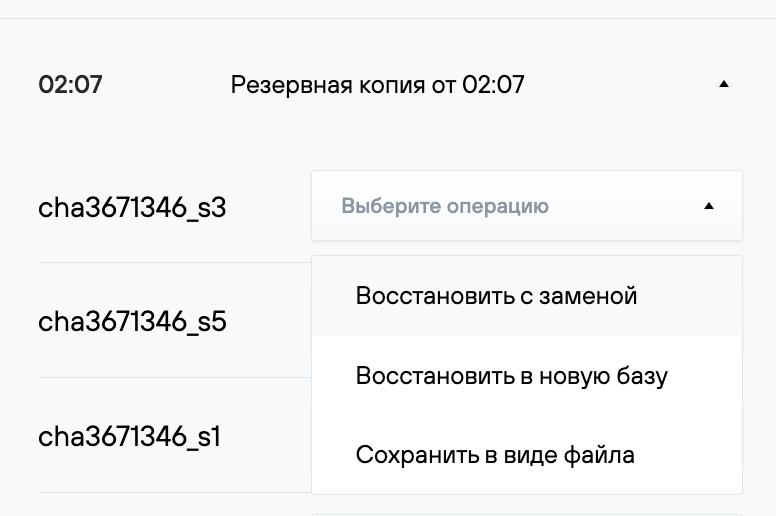
When you select the Restore with replace (Восстановить с заменой) option, the current contents of the database will be replaced.
The Restore to new database (Восстановить в новую базу) function creates a new database and restores the contents of the backup to it. After restoring the backup to the new database, in the main menu section Databases (Базы данных) — Users (пользователи), grant access to this database for your mysql user and change the name of the old database to the new one in the configuration files of the website, then check that it is working. If the website displays a database connection error, you need to check that the database connection credentials in the website files are correct. You can find the location of configuration files containing database access credentials from the website developer or by following the instructions in Configuration files for popular CMS.
When you select the Save as file option (Сохранить в виде файла), a copy of the database will be downloaded to the /home/login/tmp/DATE directory, where DATE is the date when the backup was created. After that you can download it using a file manager or FTP.
3. Emails restoration from a backup copy
Description of email backup
Email backups are performed daily at night, in accordance with your plan's backup policy, as well as when an email domain or a mailbox is deleted. The storage time for backups does not vary regardless of the reason and method of their creation.
If the entire email domain has been deleted, its settings, global filters, and synonyms are also saved.
How to restore emails from a backup
Restoration of a website backup copy (files and databases) is made in the Backup (Резервные копии) section of the hosting control panel.
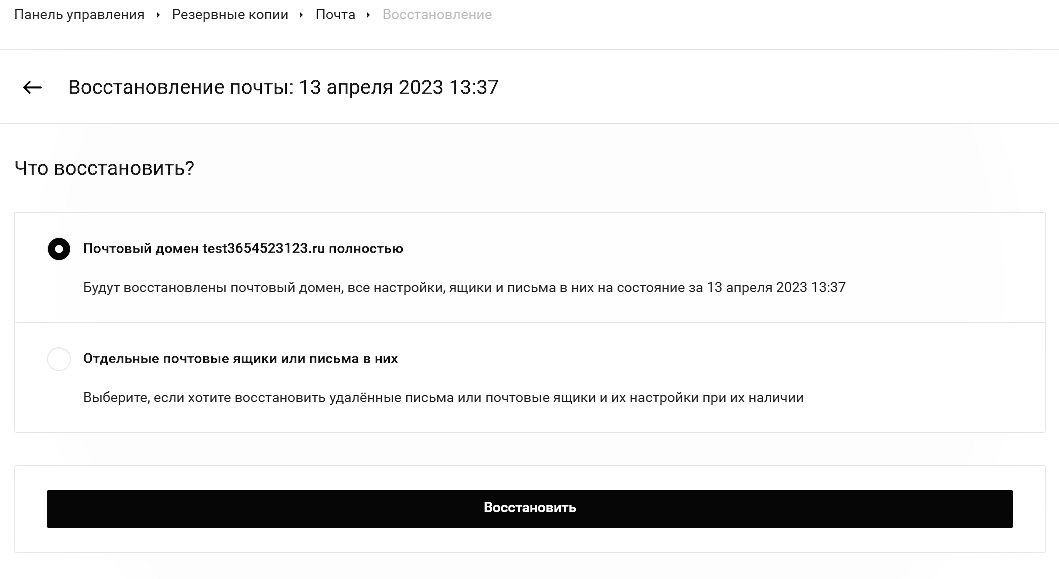
To restore your emails, go to the Backups/Email (Резервные копии/Почта) section.
After selecting the desired date, you will see the backups, their creation times, and the email domain.
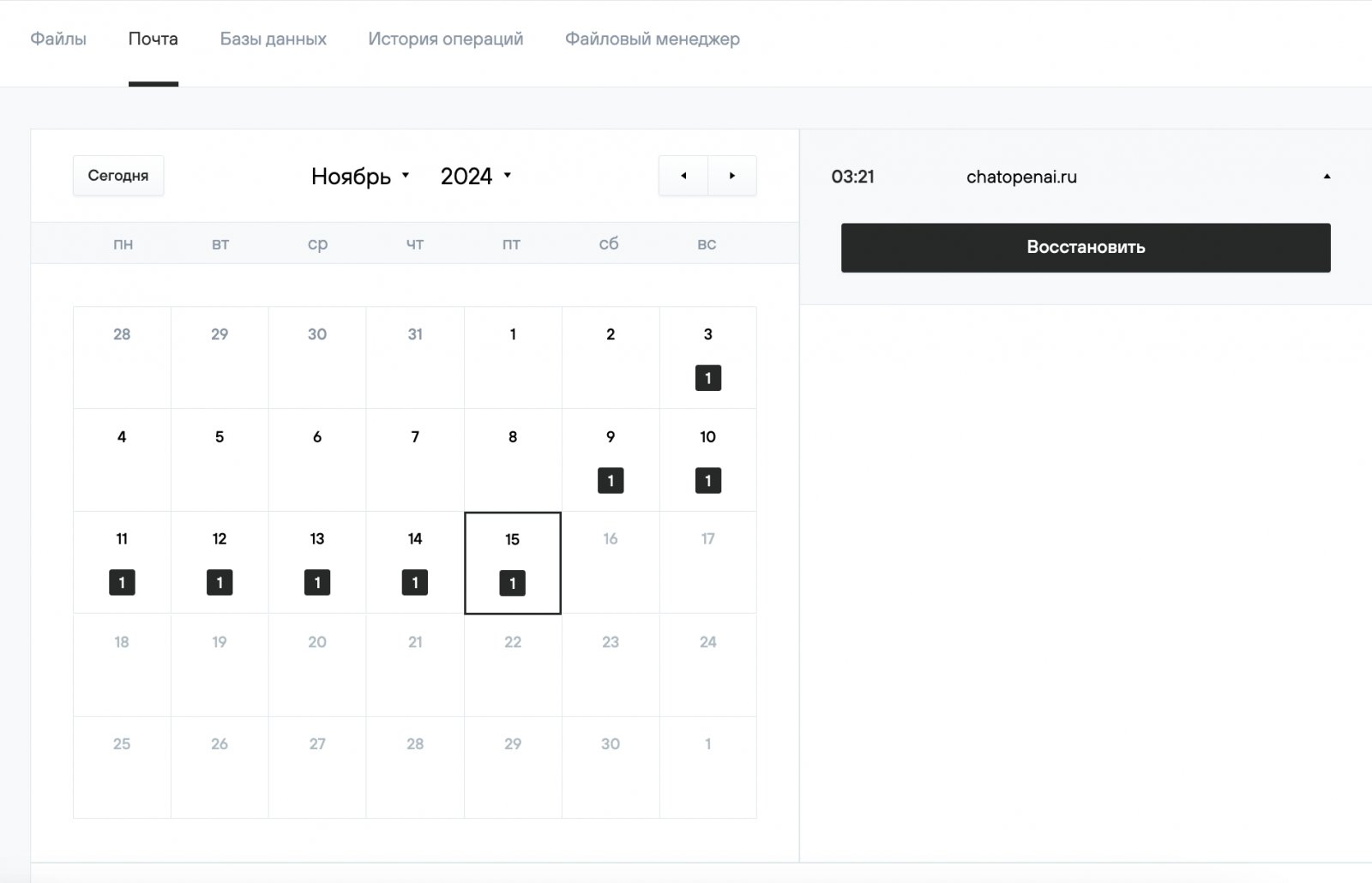
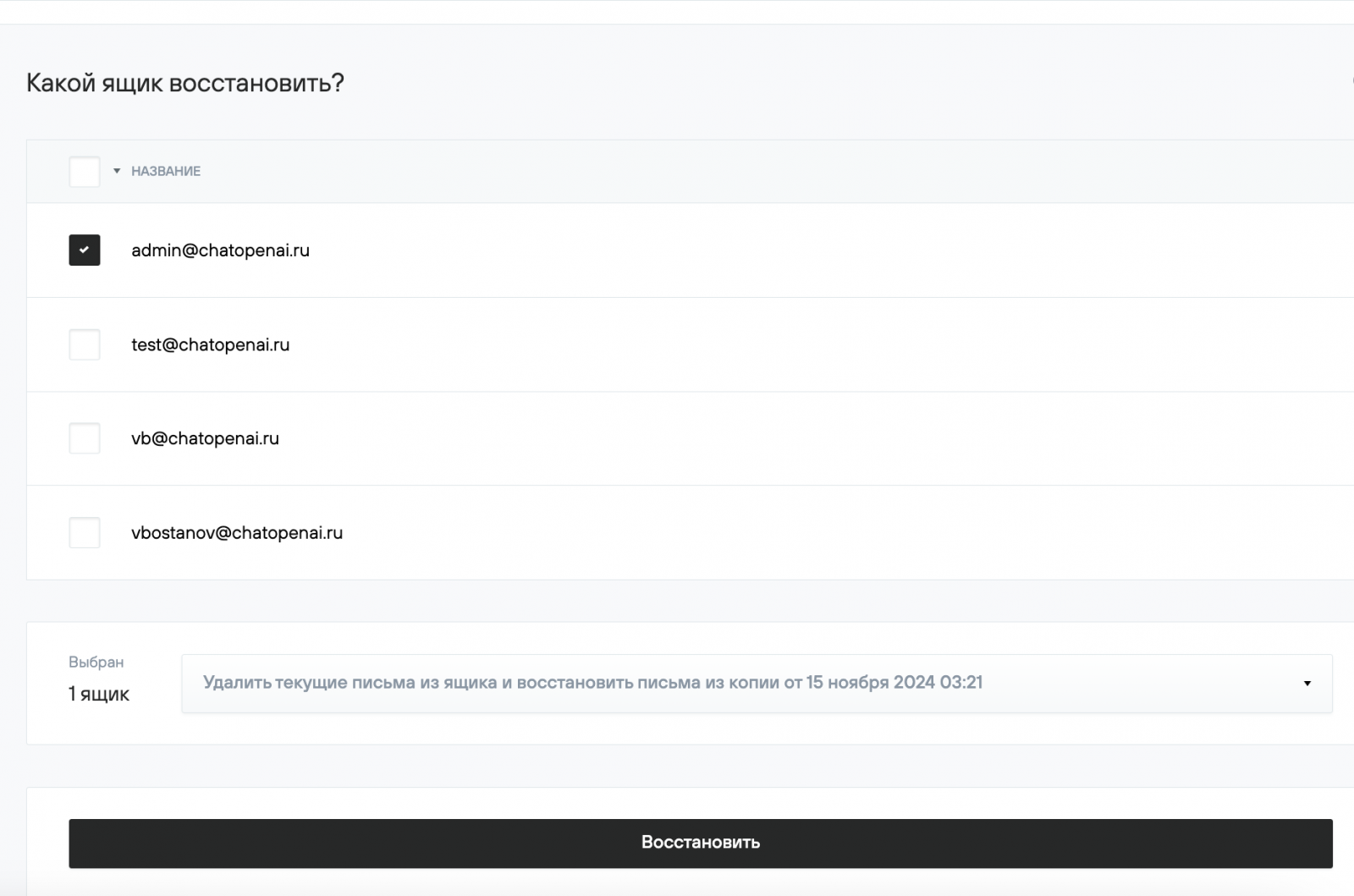
By clicking the Restore (Восстановить) button, you will be directed to a page where you can select the mailboxes and restoration method.
There are two restoration methods to choose from:
- Restore only emails that are missing from the mailbox at the relevant time.
- Delete all current emails from the mailbox and restore emails from the backup.
For backups containing mail domain settings, after clicking Restore (Восстановить), you will be offered to restore the entire email domain with settings, or only individual mailboxes or emails in them.